Follow the panel locations in the latest documented application. These guides cover observed navigation, not guaranteed render or export results.
01
Project home
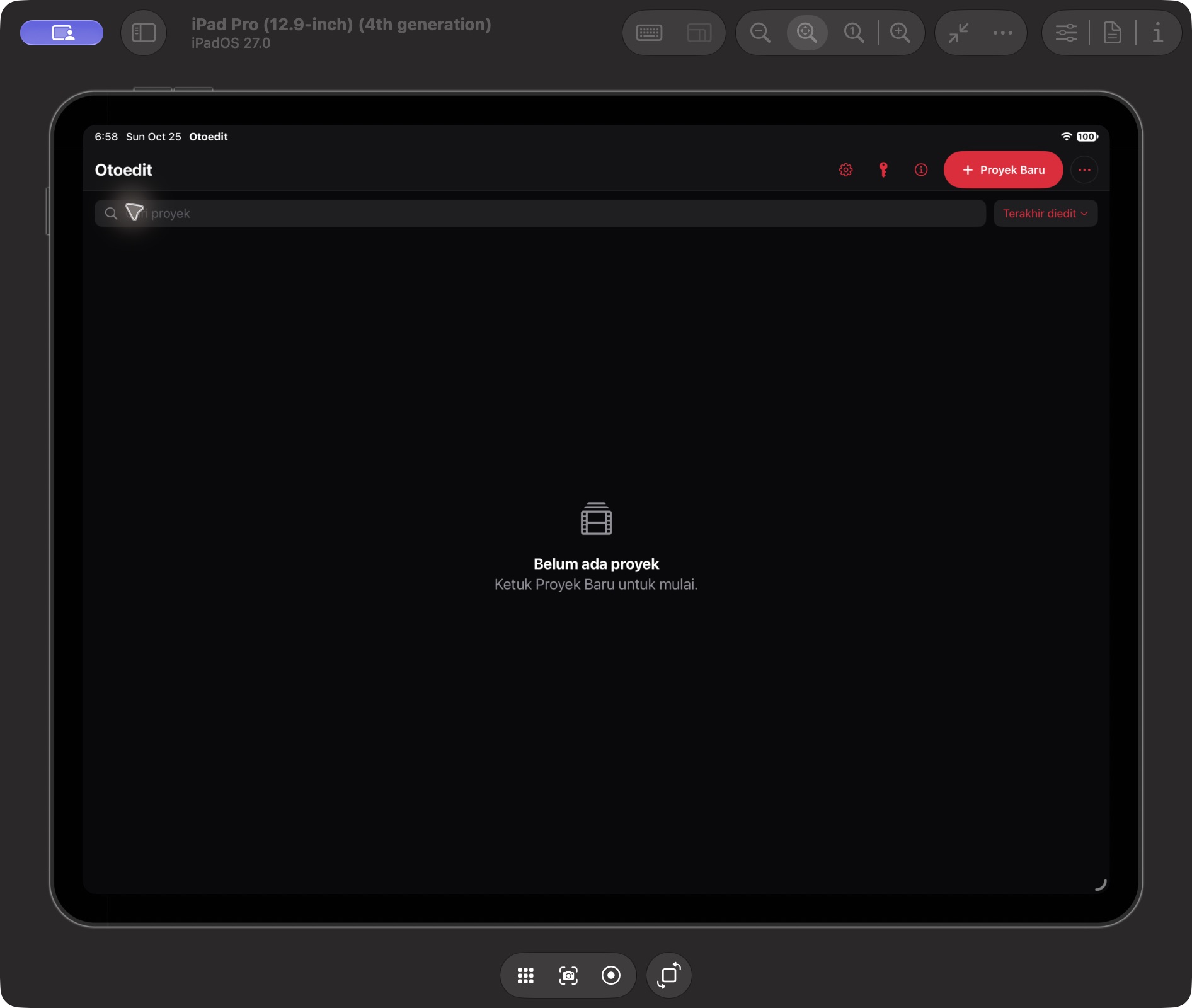
Find the iPad project hub.
In the editor, open the Project menu.
Choose Back to Home (Ke Beranda).
Locate New Project, project search, and Last Edited sorting.
The captured list is empty; saving and reopening were not tested in this session.
Build 138 · 2026-10-25 Project → Back to Home opened the project home. The project list is empty.
02
Text and subtitles
Use the Build 138 sidebar category.
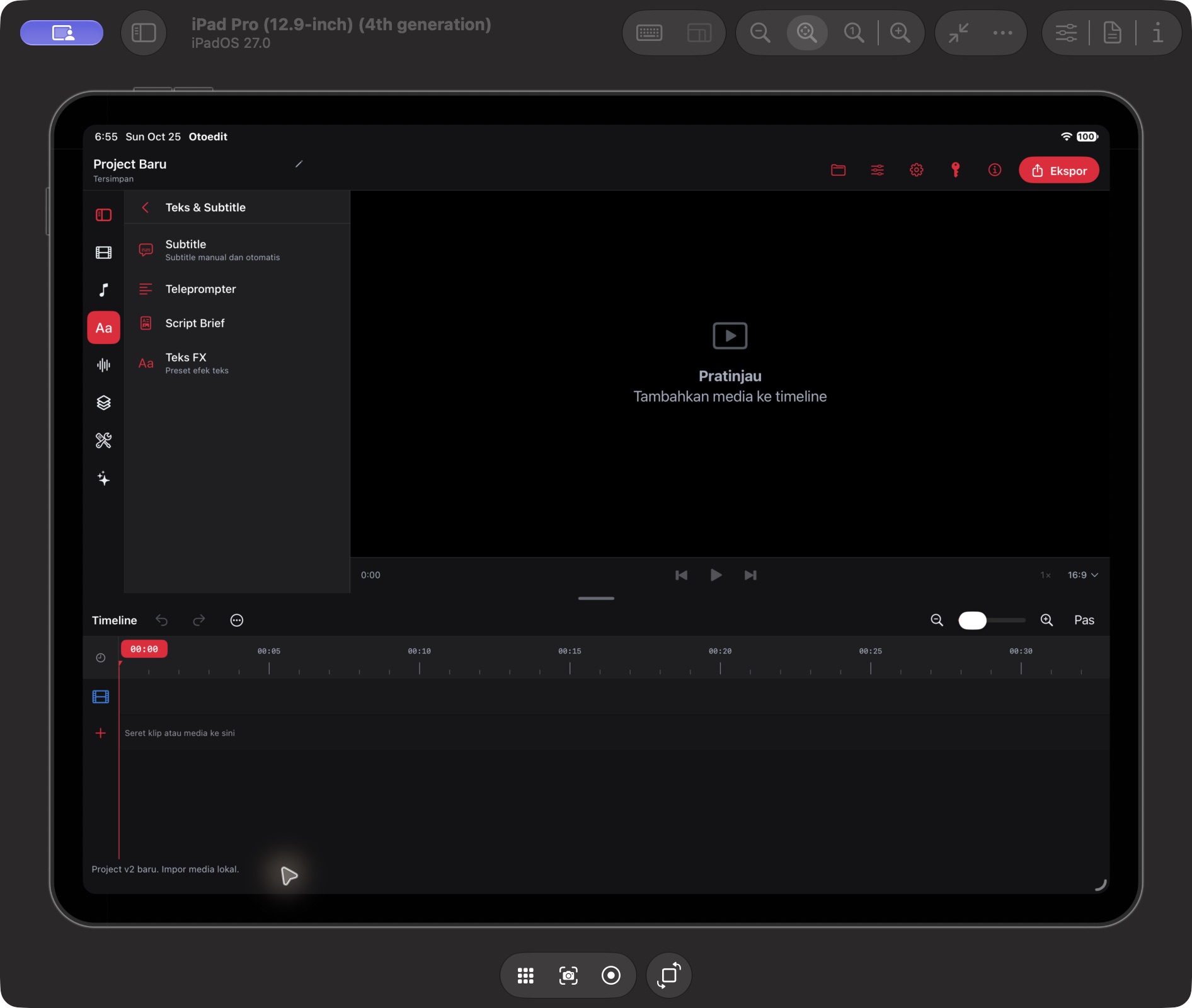
Open Text & Subtitles in the sidebar.
Locate Subtitle, Teleprompter, Script Brief, and Text FX.
Choose the relevant tool; subtitle and AI generation outputs were not tested for this documentation.
Build 138 · 2026-10-25 Text & Subtitles lists Subtitle, Teleprompter, Script Brief, and Text FX. Output generation was not tested.
03
Transition catalog
Find presets through Visual & Motion.
Open Visual & Motion in the sidebar.
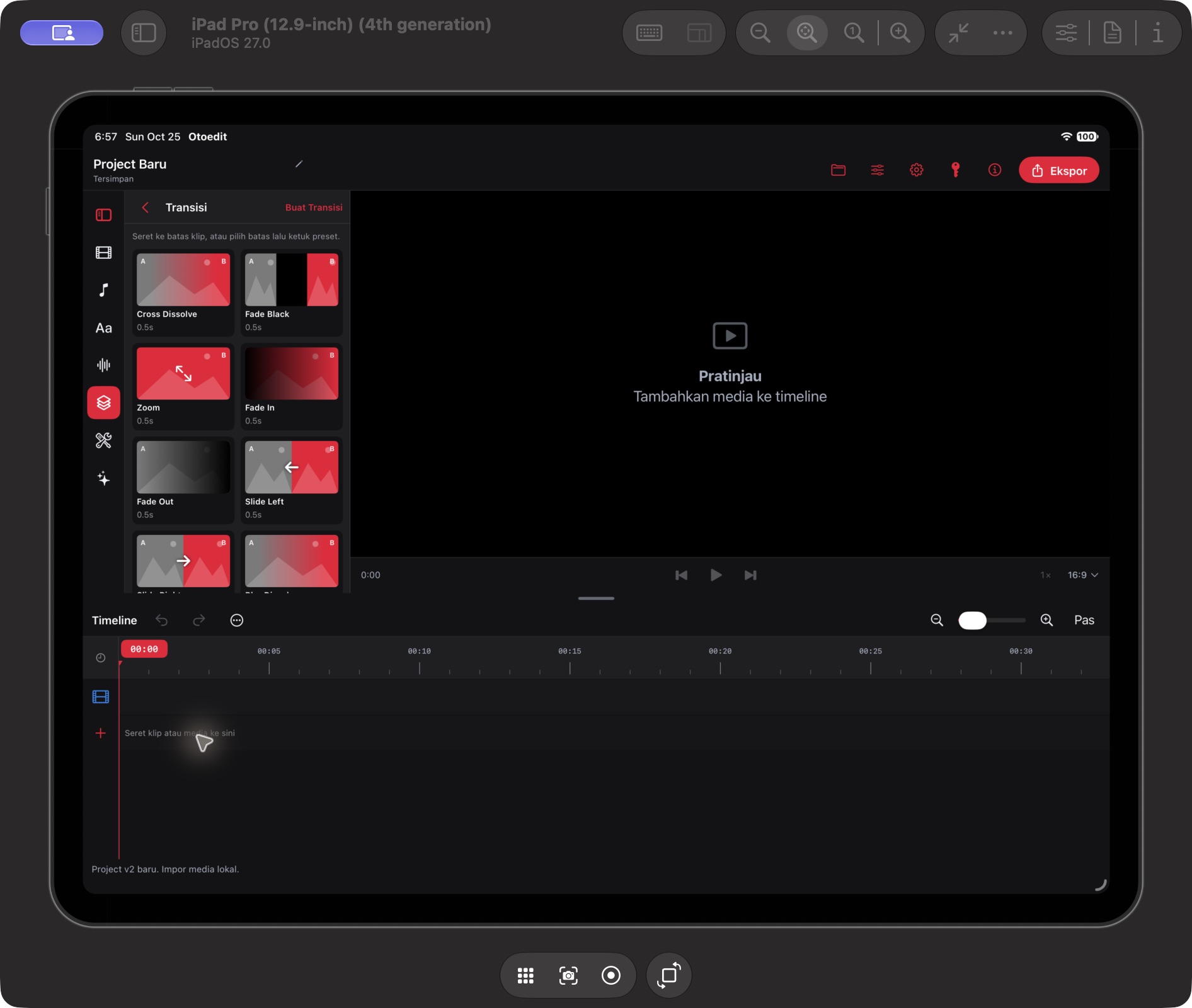
Choose Transitions to open the catalog.
Browse presets such as Cross Dissolve, Fade Black, and Zoom.
Create Transition is visible. Applying to clips and rendering were not tested.
Build 138 · 2026-10-25 The transition catalog opened: Cross Dissolve, Fade Black, Zoom, Fade In, Fade Out, and Slide Left are visible. Applying and rendering were not tested.
Using a Mac?
Explore Otoedit for macOS, including purchases, accounts, licenses, and downloads.